
Adding an Image
First, make sure your images are saved at 72 dpi. Size your images to fit the page. Between 5 and 500 pixels is normal. No image should exceed 700 x 900 pixels. Oversized images slow down a webpage's loading time. View Resizing images for the web for more details.
Please make sure images used are copyright free or used with permission, and Model Release forms are signed if people are present in the photos.
How to Guide
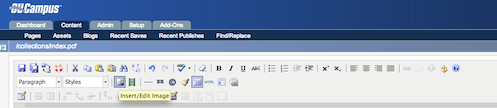
1. Click 'Insert/Edit' image button
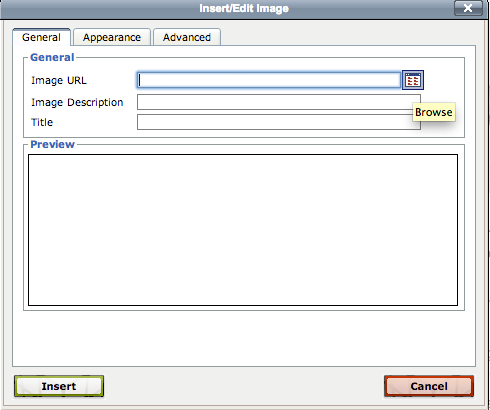
2. A dialog box will open. Click 'Browse'
3. If the file has already been uploaded to OmniUpdate, find the file and click 'Insert'. If not, and the file is saved on your computer, click 'Upload'
4. Choose 'File' – find the document on your computer and click 'Upload'
5. Scroll down the list of images in OU and find the image – in this example gc-logo and click 'Select file'
6. Add Image description & Title (this is the alternate text that screen readers use) Click ' Insert'