
Changing Page Template
Instructions
-
Navigate to the page you wish to change and log in.
-
Once logged in, double check that you are on the page you wish to update.
-
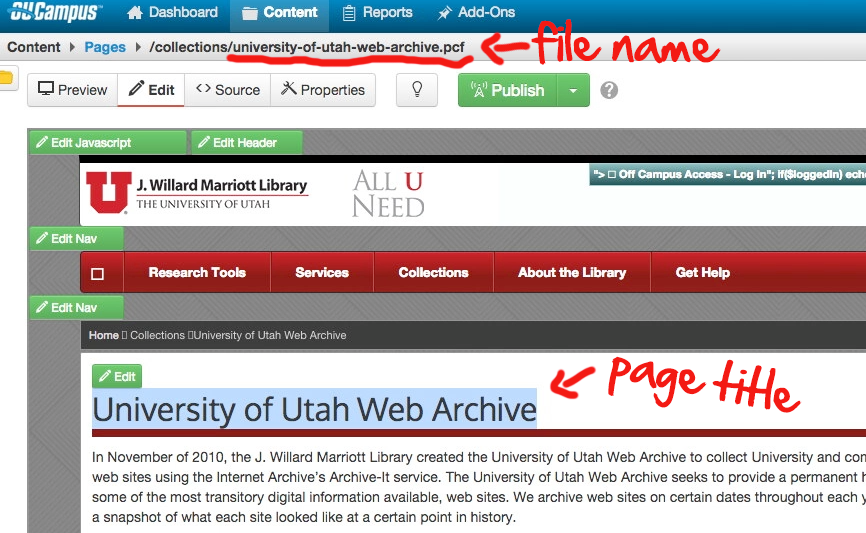
Take note of the page title and file name.
-
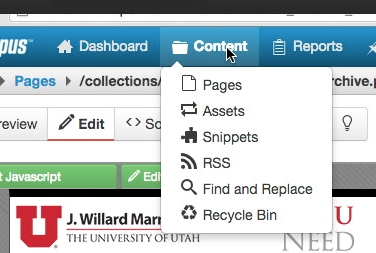
Click the "Content" button
-
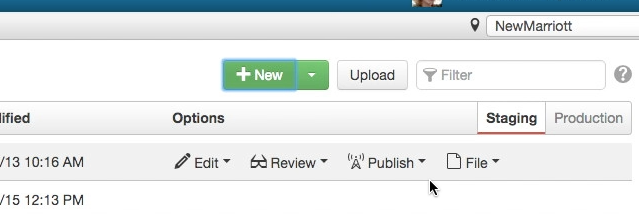
Click the "New" button
-
Select the new template.

-
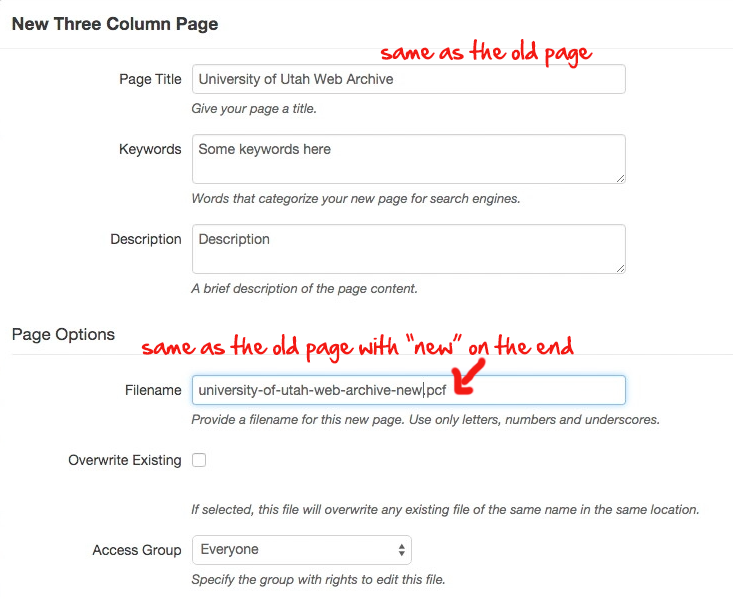
Fill in new page details. Page Title is the same as the old page, File name is the same with "new" tacked on to the end.
-
Copy code from the old page into the newly created page. (Be sure to grab keywords and meta description.)
-
We suggest copying the html directly. Though, it's up to what the user feels comfortable with.
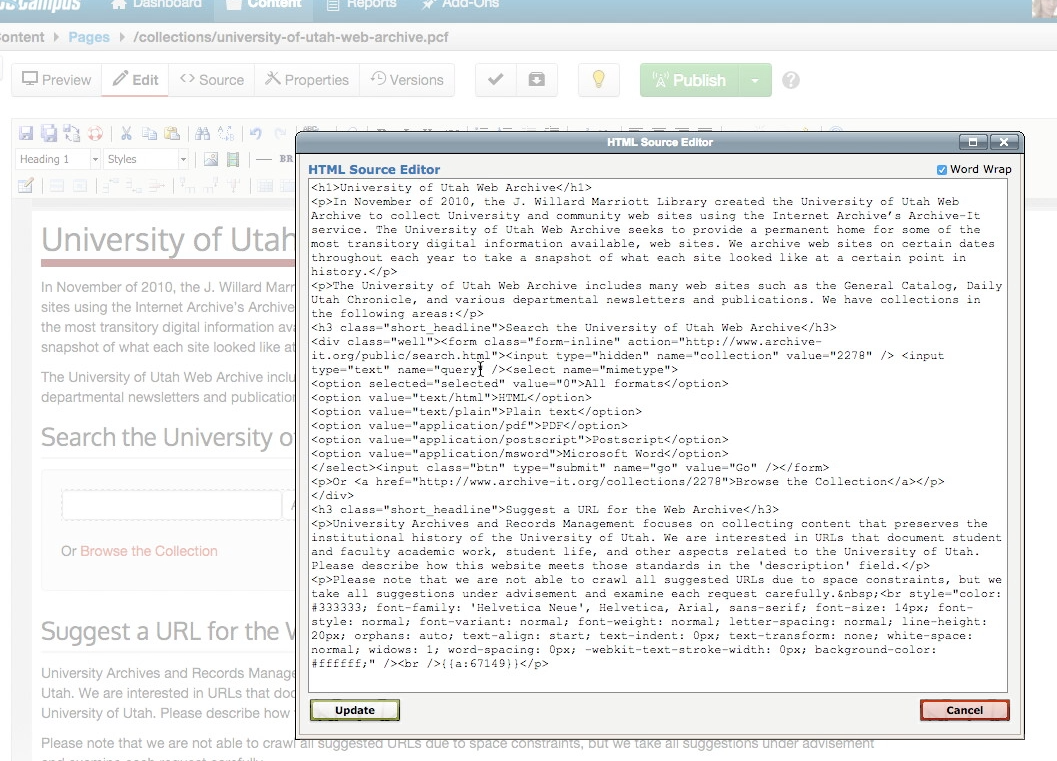
Once content transfer is complete:
1a.) If you don't have file renaming and archiving user rights, contact the web team about making the production switch . (Which is archiving the old page and making the newly created page live.)
1b.) If you do have file renaming and archiving user rights, rename the current file "filename-OLD" and remove "new" from the new page name. eg "filename-new.pcf" to "filename.pcf" Move "filename-OLD" to pending delete and publish the new page.